Hey! So we all take screenshots, whether it is send to someone or keep for your own references. Sometimes, we need to copy those screenshots to our clipboard to then send them to someone else. Instead of taking a screenshot, right-clicking, and pressing “Save to Clipboard”, here is a cool feature, you can automatically save it to the clipboard! Here is how!
The Slow Way:
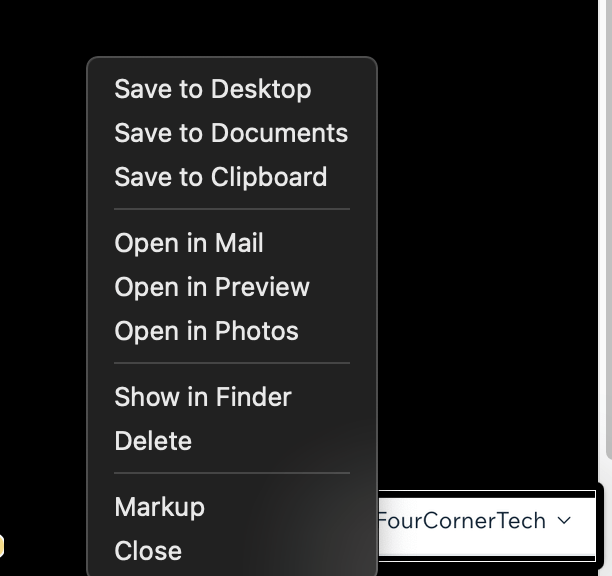
The Fast Way:
Go to system preferences > keyboard > shortcuts > screenshots and look at this part:

It may say a different keyboard shortcut, but you can customise that. I like mine to be simple, and that is why I put it to Cmd + Shift + S!
Now you can take a screenshot and it will automatically be saved to your clipboard. I am just going to press cmd + shift + s and am going to paste what I just took a screenshot of:
(that only took a few seconds!)

Is it that simple! You should definitely try it! 😀
Thanks for reading!
DISCLAIMER: All images used were from the FourCornerTech, FourCornerTech’s YouTube Channel, or they were credited properly!
About the Author:
FourCornerTech is a tech enthusiast who writes and makes videos about tech. Check out all of his socials here!
 Home | KineTech